
Smartphone Food Photography Editing Tips {Part 2}
October 24, 2014

I have a lot of apps on my smartphone, but the one I turn to the most is Snapseed, a fun photo editing app that I use to improve my food photography. This app crops, straightens, brightens, saturates, adjusts the white balance, and a whole lot more. It turns my food photos from drab to delicious in minutes. (Snapseed is available for Android and iPhone.)
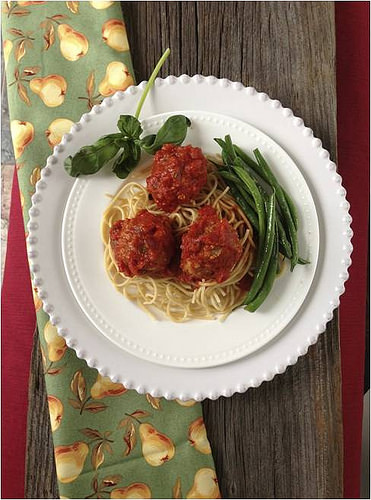
I took this image of my Garden Turkey Meatballs and Spaghetti with my smart phone. It’s OK …
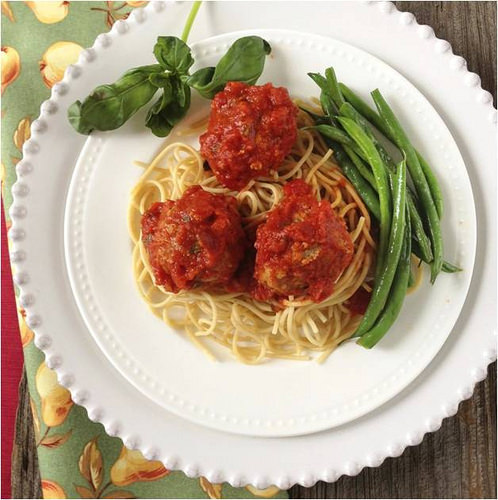
But with a few Snapseed edits, it pops.
For the past four years at FNCE, the annual meeting of the Academy of Nutrition and Dietetics, I’ve worked with Regan Jones, RDN and Janet Helm, MS, RDN on teaching fellow registered dietitians how to improve their food photography. In Part 1 of my post-FNCE Smart Phone Food Photography series, I shared tips from the workshop for taking better smart phone photos by focusing on lighting, props, and composition.

In this post, I’ll tell you how I edit my food photos on my phone using Snapseed.
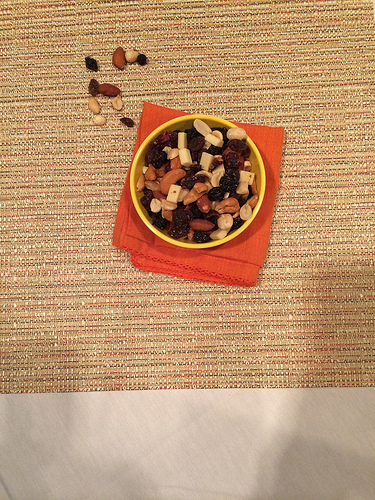
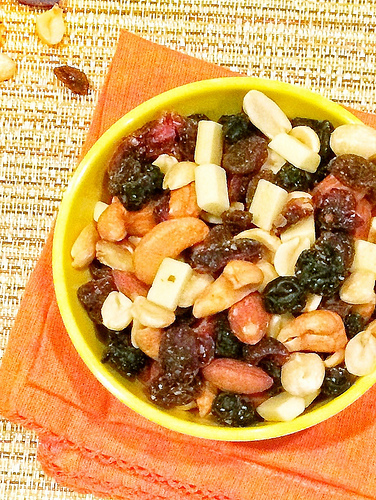
Calling this trail mix photo “drab” would be an understatement!
It’s downright “dreadful.”
This image, taken at the convention center during our workshop, is horrible. I think we can all agree on that. The artificial lighting in the room posed an enormous challenge.
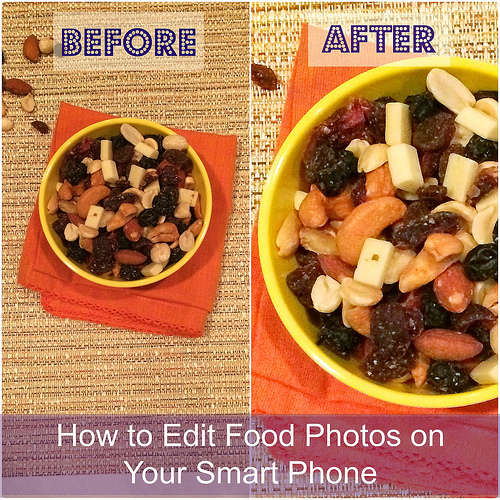
But thanks to Snapseed, I improved the image dramatically.
Let me tell you how …
Once you download Snapseed, it’s time to get creative.
– To edit an image, hit the + sign in the upper left corner of the app, and then select the image you want to edit from your Photo Library.
– Once your image is loaded, you can do a number of cool things. Along the bottom of the app, you’ll notice about a dozen little boxes that you can scroll through.
– For this image, I started by straightening and cropping. From there, I tapped on the Tune Image option. To see the options within the Tune Image box, place your finger over your image and move it up and down; six options will appear: Brightness, Ambiance, Contrast, Saturation, Shadows, and Warmth.
– Let’s start with Warmth. Once you select it, you can then move your finger to the right or the left. Moving to the left reduces warmth while moving to the right warms it up. Since my image was already way too warm (AKA golden), I toned down the warmth considerably. Moving too far to the left, however, can make your image bluish. The key here is to get your whites as white as possible. Next, I typically boost the Brightness (in this case, a lot), and then I often increase the Saturation a bit.
– Another feature I always use is Details, which allows you to boost Structure and Sharpness. This will crisp up your image.
– Select Adjust is something else I use to edit a select area on an image. I won’t get into it here, but I’m sure you’ll figure it out once you start playing with the app!
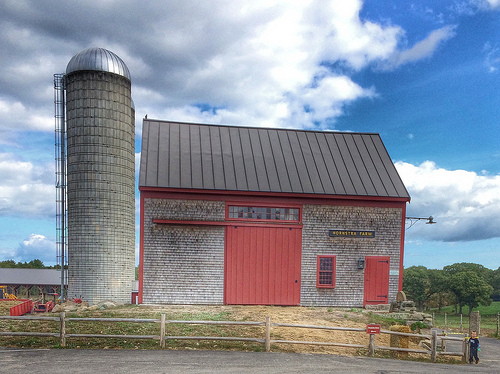
I love this photo, recently taken by your’s truly at Hornstra Dairy Farm. I was able to achieve this very cool “look” by using the HDR Scape option. I also cropped the original image quite a bit and used Brightness and Saturation. HDR is a nice option for scenic shots.
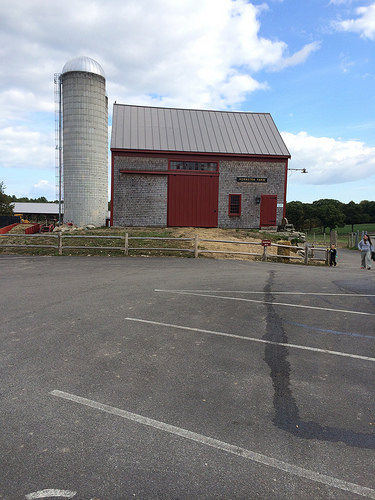
This is what the farm looked like before I edited. It’s a pretty dramatic improvement, don’t you think?
Snapseed also has filter options, but I prefer using Instagram for that.
This may all seem overwhelming, but I promise that once you get the hang of Snapseed, you’ll only spend about a minute editing each image!
Before I sign off, let me show you one more “before” and “after” editing example:
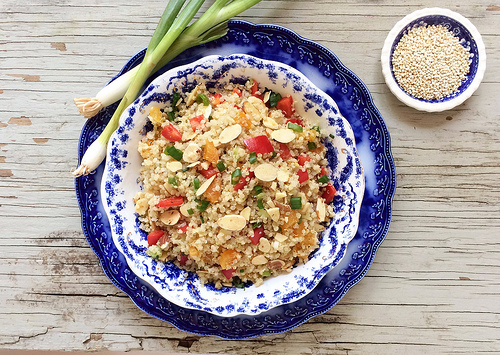
Here’s a photo of my Quinoa with Almonds and Apricots. I took the shot using Camera+ and then put Snapseed to work cropping, brightening, and adding saturation.
And here’s what it looked like when I was done!
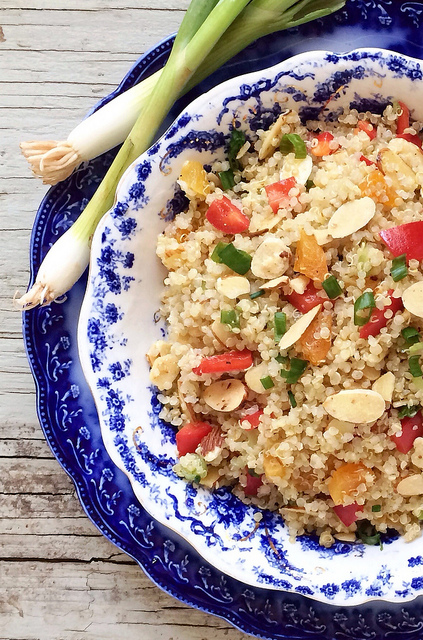
What are your favorite smart phone photography and editing apps? I’d love to hear about your favorites.
So this is your secret to GORGEOUS photos on your site! Thank you for taking to the time to write this out. It will help me and MANY others.
-Jenna
Great tips – amazing how gorgeous shots can be using the phone once edited! Thanks for sharing.
I may need to check this one out! I have not found an editing app that I like yet!
WOW. This is a huge help! I just played around with a photo I took at a dim dinner, and it was really dramatic. Thank you for sharing this 🙂
Love this! I haven’t heard of this app before but am excited to try it. I love afterlight and use that for most of my instagram photos. I love the ability to control exposure and highlights!
Is Afterlight an app? Must check it out then!
I have Snapseed on my phone but don’t really know how to use it. Thanks for the tutorial!
No way!!!!!!!!! This is amazing. I swear those are DSLR qualities. i am downloading it right now!
Have fun with it, and let me know if you need any more pointers 🙂
you can do the same with any IOS device (iPhone/IPad) which is built in to the photo editing portion of the device. Even in more detail if you’ve made sure to upgrade your photos to OS 8.1…
I need to download OS 8. Thanks!
I use that app on occasion and do like it. I tend to use Afterlight more. I still feel like my food photos on the iPhone are not quite as amazing as yours- that last one I would never guess it to be a phone shot. Soooo lovely.
Thank you so much this is awesome! going to try all these tips right now, its exactly what i was looking for! and glad i found an article written by a dietitian!
We’re so glad you found us Danielle! Let us know how the food styling goes …
There are 3 Camera + apps in the App Store. Which one do you recommend?
I use the standard camera app for the iPhone and for editing, I use Snapseed. Hope that helps!
Each and every step clearly explore no any confusion to follow it.. Thanks!!